Create Invoice and Payments
Create Invoice
-
Login to your GstBillBooks(https://gstbillbooks.com/) application account.
-
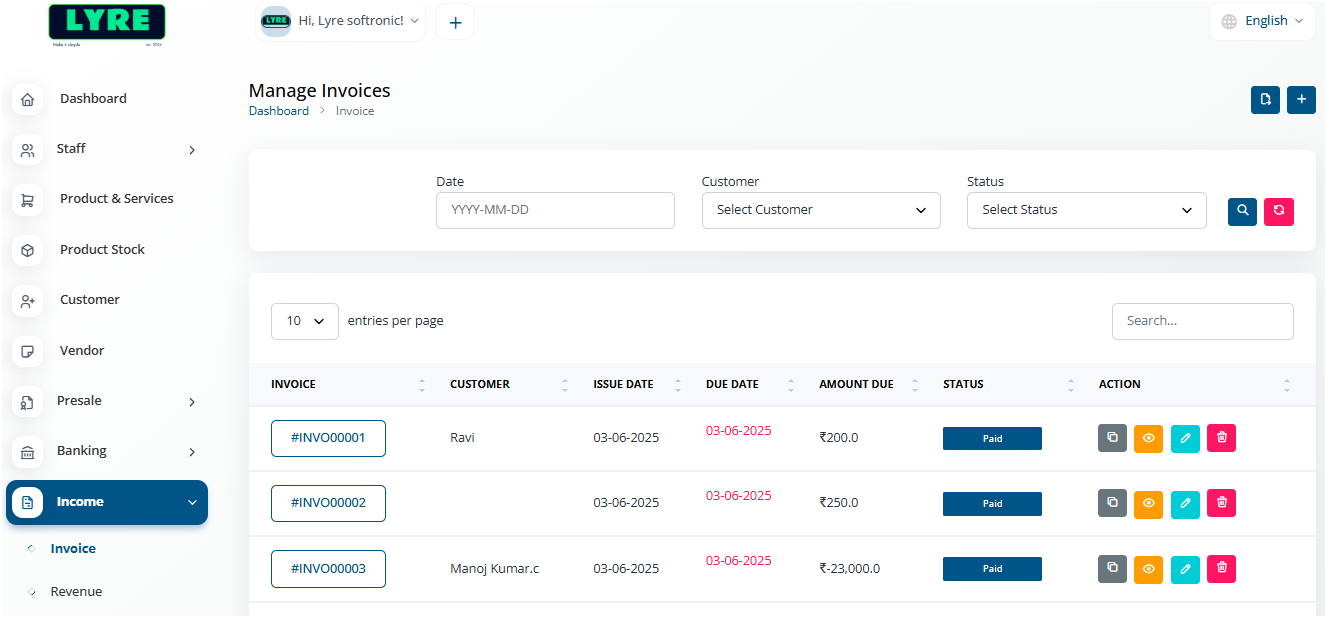
Choose Income -> Invoice on the left side menu.
-
Click on the '+' plus button on top right side to create.
-
Fill the customer details, date, sale category.
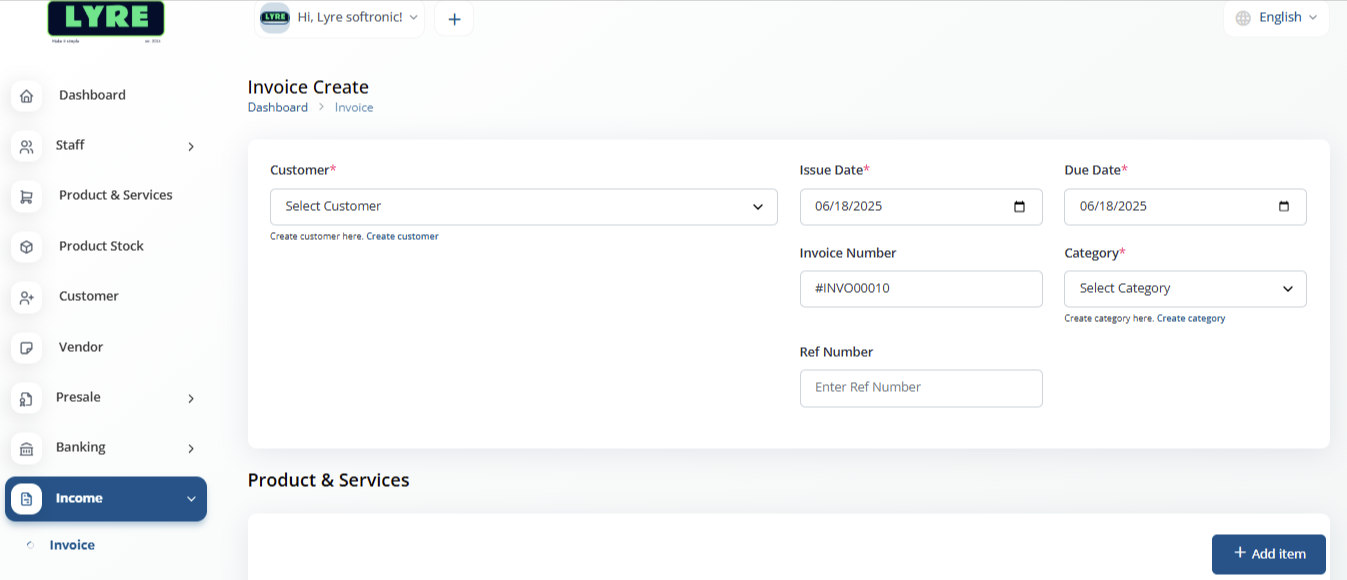
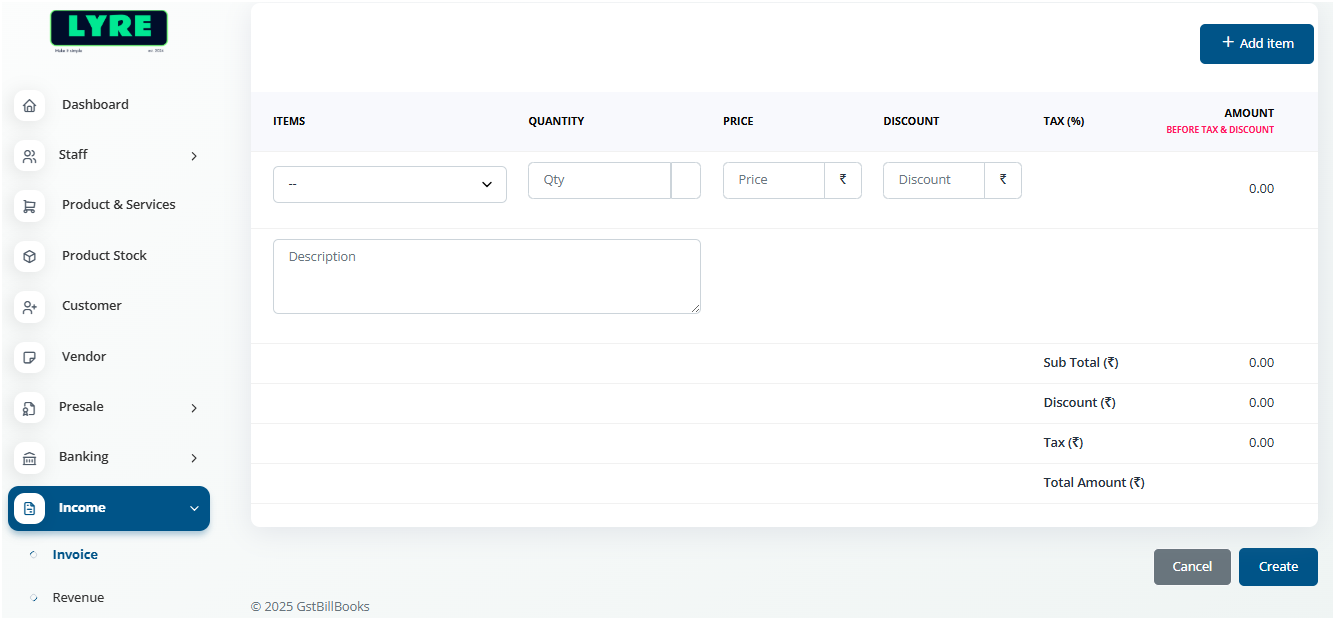
- Add product using Add Item button and you can apply dicounts for each product if you have one.
-
Once done click Create and your Invoice is created.
-
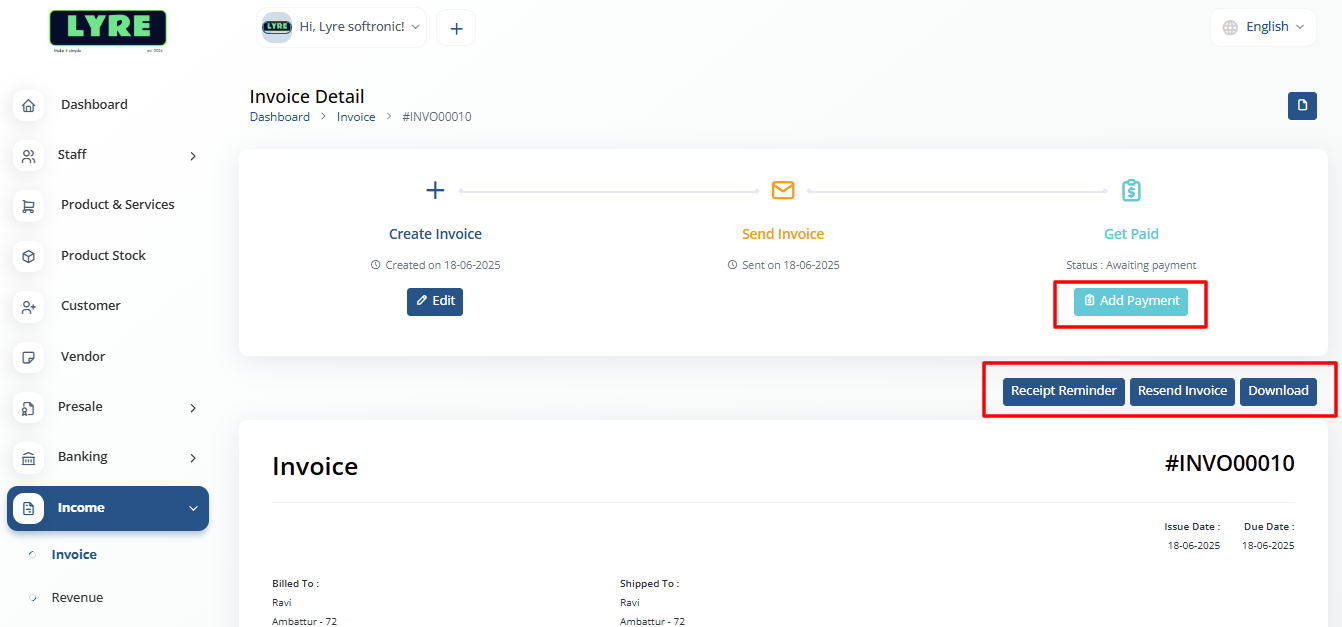
To record a payment Open the created Invoice and Click Send at the top.
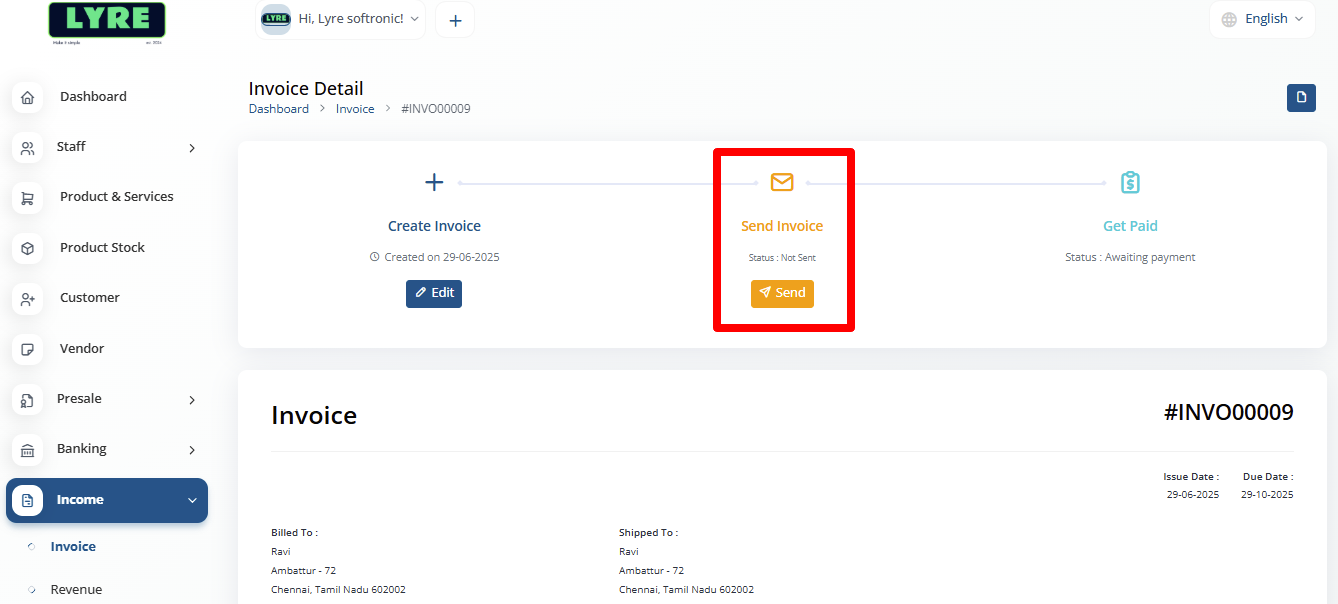
- Once sent you can add payment by click Add Payment button Resend and Send Reminder
Create Revenue
- To create a Revenue payment choose Income -> Revenue on the left side menu.
-
Click on the '+' plus button on top right side to create.
-
Fill all the fields on the create page. You can also add files or screenshots.
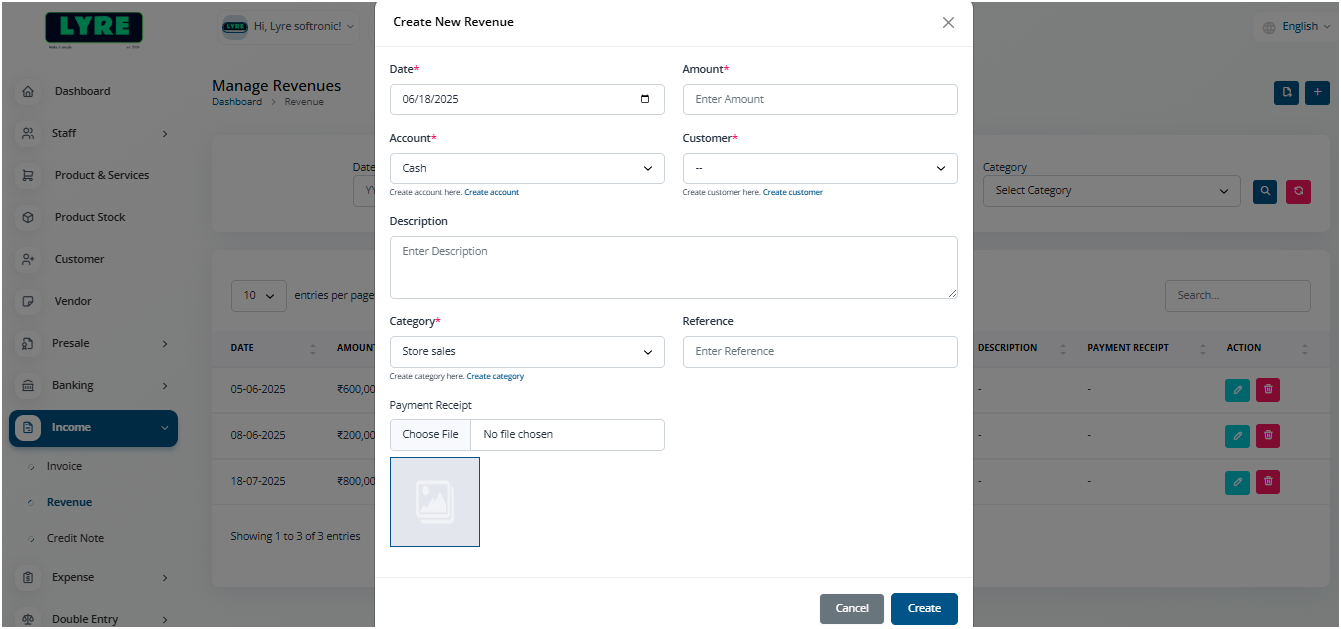
- Once done click Create.
Create Credit Note
- To create a Credit Note choose Income -> Credit Note on the left side menu.
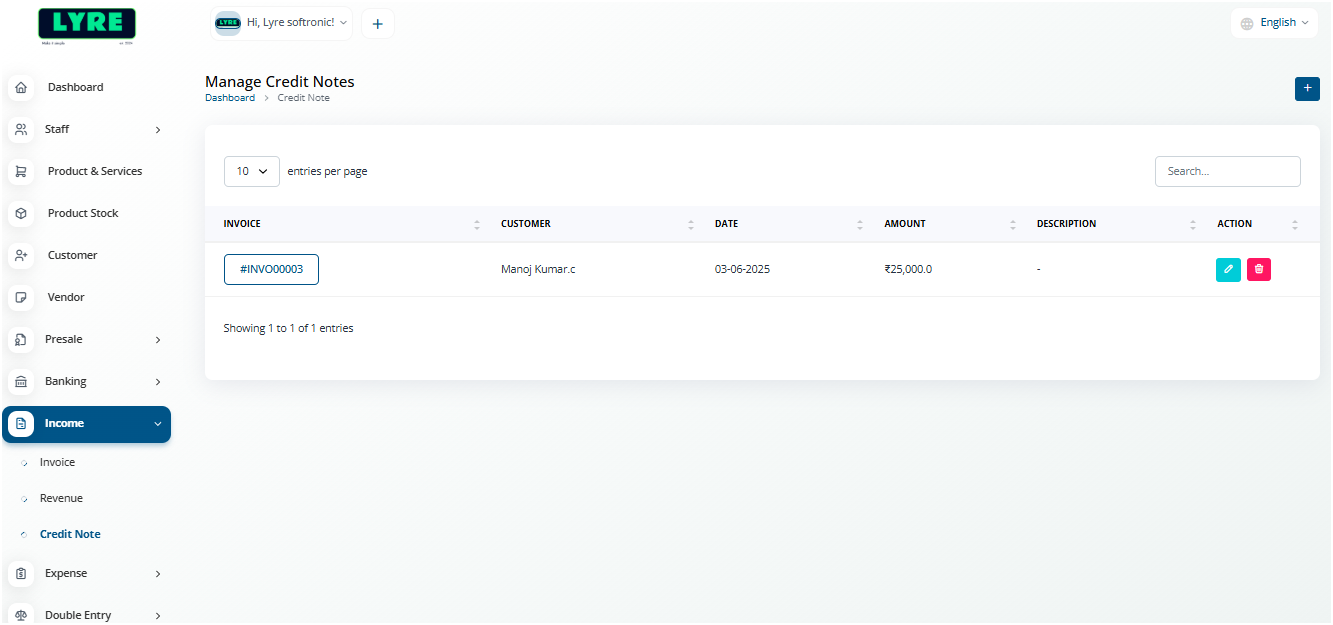
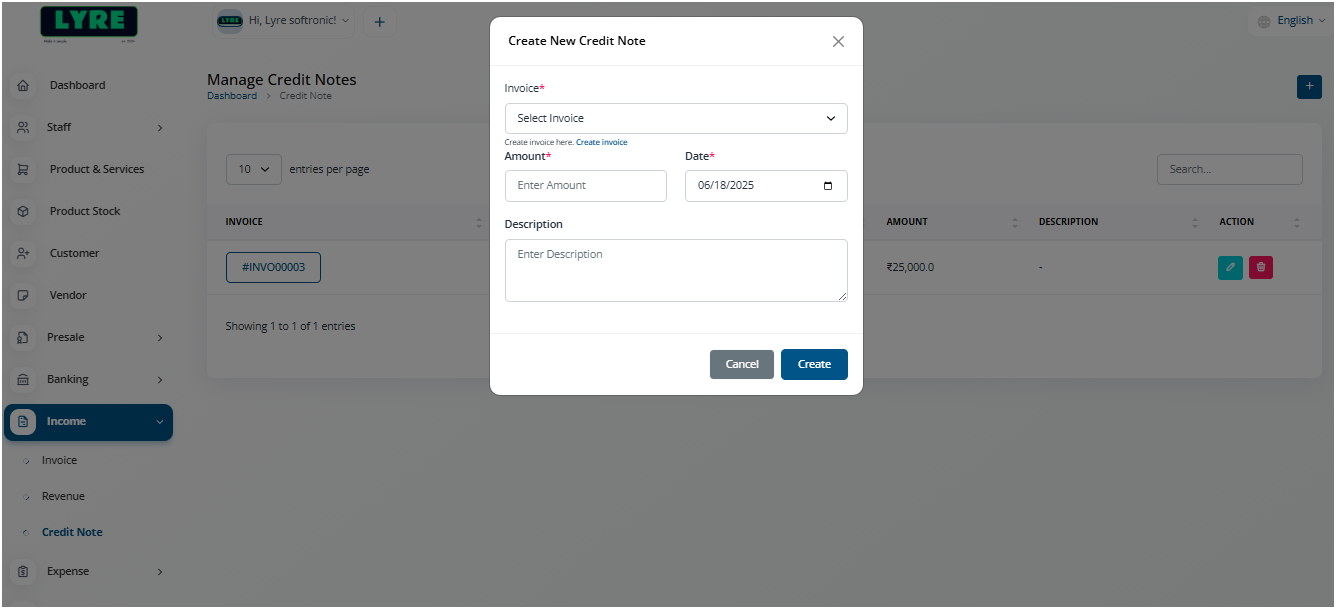
- On the create page choose the Invoice for which Credit needs to be created.
-
Choose the date and type the description if you have one.
-
Click Create to create the Credit Note.